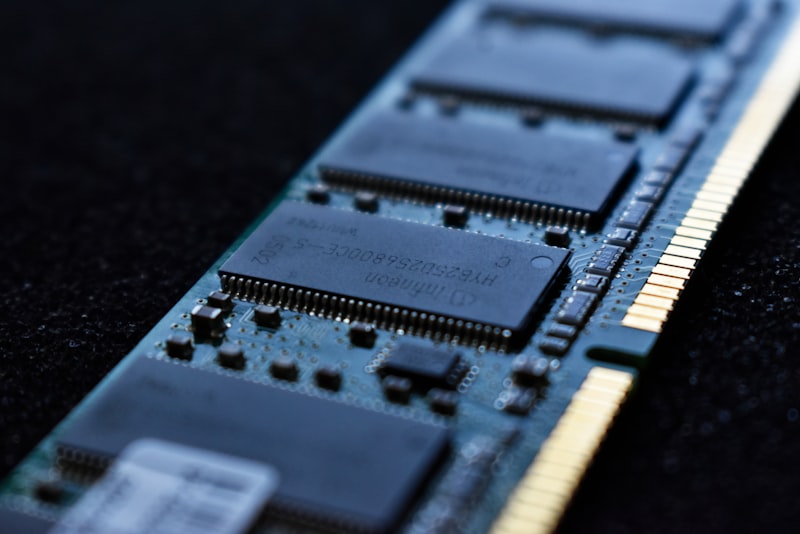
The motherboard is the one component people either wildly overspend on or dangerously cheap out on, and the marketing does everything it can to keep you confused. I've built enough machines and swapped enough boards on the bench to have a simple opinion: the chipset tier you pick should match what you actually plug in, not the sticker on the box. Let me walk you through how these tiers really differ so you can spend your money where it moves the needle.
What a Chipset Actually Does#
The chipset is a small controller that sits between your CPU and most of the peripherals in your system. The CPU itself provides a fixed number of high-speed PCIe lanes directly, usually enough for your graphics card and one fast NVMe drive. Everything else, additional M.2 slots, most of your USB ports, SATA connectors, extra PCIe slots, gets routed through the chipset over a dedicated link back to the processor.
That's the key mental model: the CPU handles the fast, latency-sensitive stuff directly, and the chipset is the traffic hub for everything else. A higher-tier chipset is essentially a bigger, busier hub. It exposes more downstream lanes, more USB ports, and in many cases unlocks features the cheaper silicon simply disables.
Two things follow from this that surprise people:
- Your gaming graphics card runs off CPU lanes, so a budget board and a flagship board feed the GPU identically. That's why chipset tier has essentially zero impact on frame rates in a normal single-GPU build.
- The chipset link itself is shared bandwidth. Load up every chipset-connected M.2 and USB port at once and you can saturate that link, but almost nobody does that in a gaming build.
Reading the Tier Stack#
Both Intel and AMD sell the same board silicon in a ladder of tiers, and the naming is deliberately similar across generations so it sticks in your memory. On the AMD side you'll see the B-series as the mainstream tier and the X-series as the enthusiast tier, with an A-series budget floor. Intel mirrors this with B, H, and Z letters, where Z is the overclocking-friendly top tier.
Rather than memorize model numbers that change every generation, sort boards by what the tier unlocks:
- Entry tier — fewest chipset lanes, limited or no CPU overclocking, often one M.2 slot, basic USB. Fine for a locked CPU and a single SSD.
- Mainstream tier — the sweet spot for most builders. Enough M.2 slots for a boot drive plus a game library drive, decent USB, and on AMD, memory and CPU overclocking support.
- Enthusiast tier — the most downstream lanes, the beefiest default VRM designs, extra M.2 and USB4, and full overclocking headroom.
Here's the honest part: for a mid-range gaming PC with one GPU and two drives, the mainstream tier does everything the enthusiast tier does that you'll ever notice. The upgrade to the top tier buys you connectivity and overclocking headroom, not performance out of the box.
VRMs: The One Thing Worth Paying Attention To#
If chipset tier is overhyped, the voltage regulation module (VRM) is underappreciated. The VRM is the cluster of power stages, chokes, and heatsinks near the CPU socket that converts your PSU's 12 volts into the clean, precise voltage the processor demands, and does it while the CPU is yanking that current up and down thousands of times a second.
A weak VRM doesn't usually blow up. What it does is get hot, then throttle. When the power stages overheat, the board pulls the CPU back to protect itself, and you lose sustained clock speed exactly when you're under a long, heavy load, a rendering job, a compile, a lengthy benchmark run.
When VRMs Matter and When They Don't#
The demand on the VRM scales with how much power your CPU draws:
- Low-power or mid-tier CPUs (six to eight cores, modest wattage) are gentle on VRMs. Almost any current board, even entry tier, handles them without breaking a sweat.
- High-core-count, high-wattage CPUs pushed to their limits are where cheap VRMs show their weakness. If you're running a flagship chip flat out for sustained workloads, a stronger VRM keeps clocks up longer.
How do you judge a VRM without an electrical engineering degree? A couple of practical signals I use on the bench:
- Look at the heatsinks. Large, finned aluminum blocks over the power stages tell you the maker expects real heat and planned for it. A bare board with no heatsink over the VRM is a red flag on a high-end CPU.
- Read independent teardowns. Reviewers who thermal-test VRMs under sustained load will tell you flatly whether a board holds up. This is far more reliable than counting the phases in a spec sheet, since not all "phases" are equal.
The trap to avoid: pairing a top-tier, power-hungry CPU with a bottom-tier board to save money. That's the one combination where the motherboard genuinely bottlenecks you.
PCIe Lanes and Storage Reality#
Lane budgets are where the chipset tiers spread out the most, and also where people worry about the wrong things.
Your GPU gets its lanes from the CPU regardless of tier. The question that actually varies is how many fast M.2 slots you get and which of them run at full speed. On many boards, adding a second or third NVMe drive quietly disables some SATA ports or drops a slot to a slower mode, because those lanes are being borrowed from a shared pool. This is buried in the manual's block diagram, and it's worth a two-minute read before you buy.
A few things that trip people up:
- PCIe generation on the M.2 slot rarely changes real-world game load times. A current-gen drive and a previous-gen drive feel identical launching a game. Buy capacity and reliability over headline sequential numbers.
- The primary GPU slot occasionally drops from x16 to x8 when you populate a specific M.2 slot. On a single modern GPU this is a non-issue for gaming, but know it's happening so you don't panic when a diagnostic tool reports it.
- If you genuinely need three or more fast NVMe drives, that's a real reason to climb to a higher tier, one of the few concrete ones.
Features You'll Actually Use vs. Spec-Sheet Filler#
The feature list is where boards justify their price, so read it as a builder, not a collector. Ask of every bullet point: will I plug something into this?
Worth paying for when relevant:
- Built-in Wi-Fi. If your machine isn't next to the router, integrated Wi-Fi and Bluetooth save you a separate card and a rear-panel slot. On a wired desktop, it's dead weight.
- USB4 / high-speed USB-C. Genuinely useful if you own fast external storage or a capable dock. Most people don't yet, so don't pay a premium for a port you'll never fill.
- 2.5G Ethernet. Nice future-proofing and it costs little on most mainstream boards now.
- Enough rear USB ports. Boring, but count your peripherals plus a headset dongle and a couple of spare ports. Running out is a daily annoyance.
Usually filler for a gaming build:
- Elaborate RGB headers and diagnostic displays. Fun, not functional. Fine if free, never a reason to jump a tier.
- Multiple reinforced GPU slots marketed for multi-card setups that modern gaming doesn't use.
- Extreme overclocking features on a board you'll pair with a locked CPU.
Don't forget the physical size ties into all of this. A compact board sacrifices slots and sometimes VRM room for a smaller footprint. If you're building small, accept that you're trading expansion for size and pick your tier knowing some of those extra lanes literally have nowhere to go.
How I'd Actually Choose#
Here's the decision I run through on every build:
- Start with the CPU. A mid-tier chip? Mainstream board, done. A flagship chip you'll run hard? Prioritize VRM quality and lean toward a stronger board.
- Count your drives and USB devices. Two drives and a normal peripheral load fit comfortably on mainstream tier. Only heavy storage needs pushes you up.
- Pick the two or three features you'll truly use (usually Wi-Fi and enough USB) and buy the cheapest board in the right tier that has them.
- Verify the VRM with an independent thermal review, not the marketing phase count.
- Ignore the rest. RGB, extreme OC branding, and multi-GPU support are noise for most gaming builds.
The Bottom Line#
Motherboard chipsets are a tiering system for connectivity and overclocking, not a performance dial. In a normal single-GPU gaming machine, the mainstream tier gives you the same frame rates as the flagship and covers the storage and USB needs most people actually have. Spend the money you save on VRM quality if you're running a hungry CPU, and on the two or three features you'll genuinely plug into. Match the board to your parts and your habits, read one honest teardown, and you'll walk away with exactly the right board and none of the buyer's remorse.